Showing posts with label tablets. Show all posts
Showing posts with label tablets. Show all posts
Friday, February 17, 2017
install Android apps games remotely in Android Smartphone and Tablets
install Android apps games remotely in Android Smartphone and Tablets
How to install Android apps & games remotely in Android Smartphone and Tablets .
Install directly from Google Play Store without touching Android Smartphones or tablets.
Google has facilitate its customer as much as they can . With incredible services and offers , Google is always world number 1 with search engine , Google play store ,developments, blogging, webmaster tools,SEO (search engine optimization ), advertising and of course Android and many more . On Google Play Store you can find million apps and games for your smartphones and tablet which facilitate and make your life easier. Its too easy to install apps and games via WIFI or 3G from Google Play Store. Tap Google Play Store Icon and simply find out what you need. There is another superb option or method for installing android apps and games remotely into your smartphone or tablet without touching or in case its thousand miles away from you .
1. On smartphone or tablet , Activate WIFI , or 3G . Then go to setting --Accounts--Add account--Gmail.
2. Add your gmail account and password.
3. Open https://play.google.com/store on your computer .

5.Choose any app or game . (for tutorial I choose Sketch Art).
2. Add your gmail account and password.
3. Open https://play.google.com/store on your computer .
4. Sign In with same Gmail account which you already added in your smartphones or android tablets.
5.Choose any app or game . (for tutorial I choose Sketch Art).

6. Click Install .

7. Choose a desired device (if you have more than one devices synchronised ) and click install . I have selected Samsung Galaxy S2 GT-1900 for the tutorial .

8.A Congratulations message will be appeared .
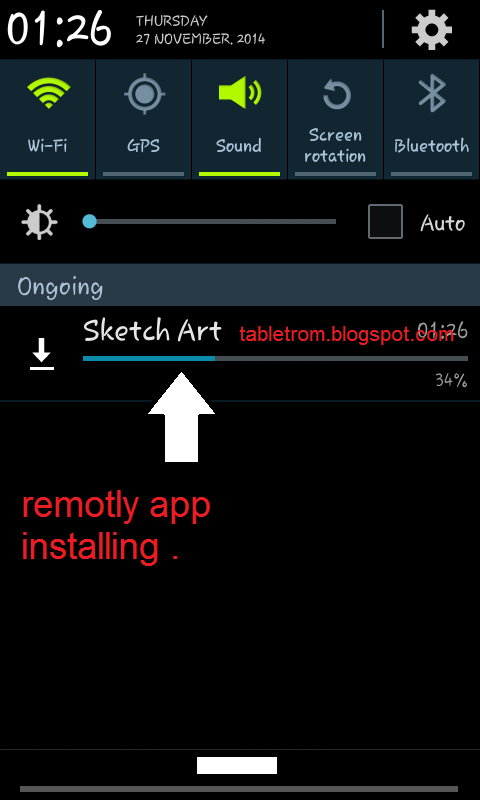
9. Just look at the smartphone you will see automatically application downloading will be started. (as shown above image).
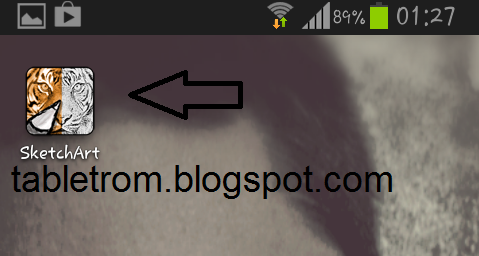
10. You are done .
Now enjoy the great benefit of being Android and Google User.
Note:- All the logo and images are property of their respected owners.
Available link for download

Friday, December 30, 2016
How To Unbrick Amlogic Tablets
How To Unbrick Amlogic Tablets
Unbrick Any Amlogic Device
How to Unbrick Amlogic tablet .
amlogic boot card maker

This tutorial will guide you, how to unbrick your amlogic tablet or any amlogic device. If you mistakenly brick your amlogic tablet and wont able to flash it via Image Burning Tool , then this tutorial can help you to recover you amlogic tablet or any amlogic device. Bricked amlogic device means if your tablet or any amlogic CPU based device wont turn on or showing only light or generating below mention error on screen while writing amlogic firmware , then this Amlogic boot card maker tool can help you to write stock firmware on your amlogic devices.
Read : What is Stock Firmware .
There is also another method available to unbrick any android tablet, that is short circuit of nand flash pins , which is not easy for new user or not user friendly method but with amlogic boot card maker method you can easily boot your bricked android tablet .
example of semi bricked amlog tablet errors while flashing.
failed to mount data
Device cant mount
Invalid Arguments
How to unbrick Amlogic tablet
First of all download amlogic boot card maker .
Then download amlogic firmware regarding your tablet and extract .
extract and run bootcardmaker.exe

A pop up window will open and you will see few options.

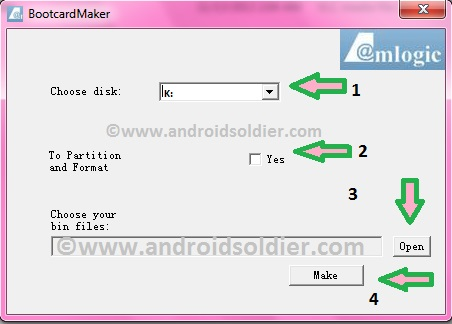
1.Choose Disk: Select the drive of your microSD card.
2. To partition and Format: Check "YES". This will format your microSD card.
3. Choose your bin files : Click open and choose u-boot.bin from your stock amlogic firmware.
4. Make : Click on Make . This will turn your microSD card into bootable amlogic recovery disk. A green bar will be appear until card turn into recovery disk.
5. Now copy all files from stock amlogic firmware . (factory_update_param.aml, aml_autoscript, firmware.zip, recovery.img, unlock_autoscript and amlogic u-boot.bin)
Turn off your tablet , Insert memory card into tablet , Power up tablet , you will see recovery mode and flashing will be start automatically . When reboot , remove memory card wait for few minutes and let the update complete. After successful upgrade everything will be normal now , follow the instructions on screen and you are good to go.
This method will work on all amlogic cpu base devices . (e.g TV Box , Tablets ).
You may also like :
Amlogic 8726-MX Android Tablet Firmware
Amlogic Vero A7720 Android Tablet Firmware
Amlogic iJoy Neon Android Tablet Firmware
All the logo and images are property of their respective owners. Android Soldier does not claim any of it.
Available link for download
Friday, December 2, 2016
How to Unbrick Lenovo IDEATAB A1000 Android Tablets
How to Unbrick Lenovo IDEATAB A1000 Android Tablets
LENOVO IDEATAB
A Series
A1000
Android Tablets
How to Unbrick Lenovo Tablet Cause by Charging Issue and Power On problem.
 |
| Lenovo IdeaTab A1000 |
The lenovo Ideatab A1000 tablets sometimes cannot power on and charge with adapter , Usb or PC ,when power too low and system is under low power situation. These symptoms only appear to IdeaTab A1000 Tab. Other lenovo tablets does not face this kind problem. Lenovo tablets are high performance and best tablet in the market. The graphics, Material quality does not less from any other well named company.
How to Solve Charging Failure and Power on Issue :
1. Download IdeaTab A1000 fix tool.
2. Double click on icon to run the exe file and install Fix Tool.

Ideatab Unbricking
3. Run software , Insert data cable to Pc , Long press volume up key and insert cable. Click on Start (As shown in above image)
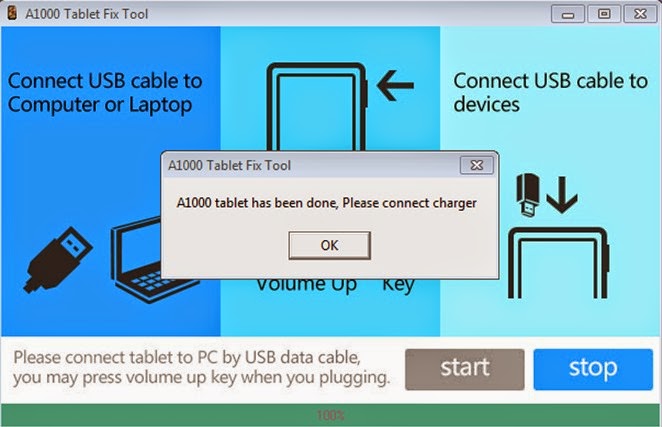
4. Fix Tool install patch automatically in tablet os system . A message window will pop up " Idea Tab A1000 tablet has been done , Please connect charger" Installation complete and tablet is updated. You are done .
Note: All the Names,logo,software,images are property of Lenovo.
Available link for download
Monday, November 28, 2016
HP Smartphones and Tablets USB Drivers Spflashfiles com
HP Smartphones and Tablets USB Drivers Spflashfiles com
HP does not provide any PC Suit or Software to sync data between your HP SmartPhone and Tablets so you can use these Drivers to connect your Hp Smartphone and tablets to computer easily... you can transfer files video and images from your smartphone to computer and create a backup for your smartphone.

To install driver simply find your smartphone or tablet from the list below and follow downloading link to install Driver. after installing driver connect you HP smartphone or tablet to computer to start sync data between your hp smartphone and Computer.
| S.no | Hp All Models | Download |
| 1 | HP 7 Plus | Download |
| 2 | HP 7 VoiceTab | Download |
| 3 | HP 8 | Download |
| 4 | HP 10 Plus | Download |
| 5 | HP Pro Slate 8 | Download |
| 6 | HP Pro Slate 10 EE G1 | Download |
| 7 | HP Pro Slate 12 | Download |
| 8 | HP Slate 6 VoiceTab | Download |
| 9 | HP Slate 6 VoiceTab II | Download |
| 10 | HP Slate 7 | Download |
| 11 | HP Slate 7 Plus | Download |
| 12 | HP Slate 7 Extreme | Download |
| 13 | HP Slate 7 VoiceTab | Download |
| 14 | HP Slate 8 Pro | Download |
| 15 | HP Slate 10 HD | Download |
| 16 | HP Slate 17 | Download |
Available link for download
Subscribe to:
Posts (Atom)