Showing posts with label google. Show all posts
Showing posts with label google. Show all posts
Saturday, March 11, 2017
Informasi lengkap Tentang Google Adsense
Informasi lengkap Tentang Google Adsense
Google Adsense adalah nama yang sangat familiar jika Anda telah memulai blog atau website. Adsense telah menjadi seperti penghasil uang untuk blogger dan para webmaster dunia.
Saya Tidak perlu menjelaskan lagi apa Adsense dan apa yang bisa Anda dapatkan dari adsense, tapi saya harus memberitahu Anda hal-hal kecil tentang Adsense dan bantuan tentang Adsense dan bagaimana caranya agar bisa diterima oleh Adsense lebih mudah dan cepat dari sebelumnya!

kadang saya mendapatkan pertanyaan dari teman blogger pemula tentang cara menghasilkan uang dengan Adsense, bagaimana menerapkan, apa saja persyaratan untuk mengajukan Adsense.
saya memutuskan untuk menulis tentang hal-hal dasar yang berkaitan dengan Google Adsense.
Jadi mari kita mulai Google Adsense!
Apa itu Google Adsense?
Google Adsense adalah metode yang mudah untuk menerapkan dan aman untuk menguangkan halaman web (blog Anda untuk Anda).
Adsense adalah jaringan iklan PPC (Pay Per Click). Penerbit menggunakan sebagian ruang di situs Web mereka / blog untuk menayangkan iklan Adsense. (Untuk misalnya - memeriksa awal posting ini, Anda akan menemukan seperti ruang iklan yang digunakan oleh Adsense.)
Sekarang Google Adsense membayar Anda untuk setiap KLIK valid dilakukan pada iklan-iklan di website / blog.
Ketika penghasilan total mencapai minimal $ 100, mereka mengirimkan pembayaran pada akhir bulan itu dengan cara cek (seluruh dunia) atau kabel mentransfer / cara lain (hanya untuk beberapa negara tertentu).
Adsense adalah jaringan iklan PPC (Pay Per Click). Penerbit menggunakan sebagian ruang di situs Web mereka / blog untuk menayangkan iklan Adsense. (Untuk misalnya - memeriksa awal posting ini, Anda akan menemukan seperti ruang iklan yang digunakan oleh Adsense.)
Sekarang Google Adsense membayar Anda untuk setiap KLIK valid dilakukan pada iklan-iklan di website / blog.
Ketika penghasilan total mencapai minimal $ 100, mereka mengirimkan pembayaran pada akhir bulan itu dengan cara cek (seluruh dunia) atau kabel mentransfer / cara lain (hanya untuk beberapa negara tertentu).
Bagaimana Cara Adsense Bekerja?
 Pertama-tama, Anda harus mendaftar ke program Google Adsense (cara mendaftar? Lihat di bawah). Mereka memiliki kebijakan ketat yang website Anda harus mematuhi saat mendaftar dan juga sesuai di masa depan untuk menghindari masalah di kemudian hari (Adsense terlalu terkenal melarang penerbit yang tidak memenuhi syarat dan ketentuan mereka).
 Setelah mendaftar berhasil, Anda akan diberikan kode iklan untuk ditempatkan di situs Web Anda.
Google Adsense secara otomatis memindai konten web Anda dan melayani iklan yang berhubungan dengan isi website Anda untuk hasil terbaik.
Setiap kali beberapa pengunjung menemukan iklan berguna baginya, ia akan klik iklan untuk mencapai situs pengiklan. Untuk setiap klik valid tersebut, Anda menerima beberapa jumlah.
Dan seperti yang disebutkan sebelumnya, Anda akan dikirim Total pembayaran pada akhir bulan jika mencapai minimal $ 100.
Cara Memulai Dengan Google Adsense?
Pertama-tama Anda memerlukan situs web / blog yang siap Adsense dari setiap aspek. Situs ini harus sesuai dengan google kebijakan program adsense yang harus Anda membaca dan memahami dengan baik sebelum mengajukan permohonan Adsense.
Kepala sebelah https://www.google.com/adsense dan klik pada tombol Sign-up.

Kemudian Anda harus memilih akun google jika Anda memiliki atau Anda dapat membuat satu sekarang, gratis.

Setelah memilih akun google, Anda harus mengirimkan rincian tentang situs web Anda bahwa Anda ingin menempatkan iklan di.
Sebenarnya, setelah Anda disetujui oleh adsense Anda dapat menempatkan iklan yang sama pada salah satu situs-situs lain juga, tapi mereka harus mematuhi kebijakan adsense pasti.

Kepala ke arah langkah terakhir dan kemudian menunggu respon dari tim Adsense melalui email.
Setelah Anda mendapatkan disetujui oleh Adsense (Anda akan mendapatkan informasi melalui email) Anda hanya perlu membuat unit iklan dan menempatkannya di manapun Anda suka pada website Anda! Hanya login ke http://google.com/adsense
Kebijakan Program Google Adsense Untuk diingat
- Anda harus berusia minimal 18 tahun untuk berpartisipasi.
- Website / blog tidak harus memiliki konten yang berhubungan dengan hacker / retak software, perjudian, konten dewasa, tidak harus mendistribusikan materi berhak cipta secara gratis atau harus tidak terhubung ke situs tersebut. Singkatnya tidak ada barang ilegal atau hal-hal yang dapat keberatan dengan cara apapun.
- Untuk beberapa negara (kebanyakan negara Asia), usia domain minimum (usia website Anda) telah diatur untuk 6 bulan. Periksa kebijakan program untuk tahu lebih banyak tentang negara Anda.
- Anda dapat menempatkan 3 unit iklan + 3 unit tautan paling banyak dalam satu halaman. Tempatkan satu lagi dan Anda hilang selamanya. Periksa titik di bawah ini.
- Google Adsense tidak mentolerir segala jenis kegiatan atau pelanggaran yang tidak valid dari sisi Anda. Ini termasuk (namun tidak terbatas pada) mengklik unit iklan Anda sendiri, meminta seseorang untuk mengklik, melanggar kebijakan konten web atau kebijakan lain yang ditetapkan oleh Adsense. Jika Anda tertangkap bersalah oleh mereka, mereka bisa melarang Anda segera (ya, mereka melarang banyak orang setiap hari. Mereka sangat terkenal ini.) Dan setelah Anda dilarang dari program mereka, tidak ada cara untuk mendapatkan kembali Anda Akun kecuali (tapi tidak dijamin) Anda dapat membuktikan kepada mereka bahwa Anda tidak bersalah (mungkin kurang dari 1% rekening dilarang mendapatkan dipulihkan ... itu terlalu kurang.)
Jadi singkatnya, Anda perlu membaca kebijakan program Adsense secara menyeluruh dan memenuhi 100% syaratnya.
Berapa Banyak yang Bisa Anda Dapatkan Dari Adsense
 Semua orang mengatakan "Tidak ada yang dapat memberitahu Anda bahwa!". Karena penghasilan yang terbuat dari Adsense tidak tetap sama sekali. Hal ini tergantung pada banyak faktor yang Anda tidak perlu untuk mendapatkan jauh di dalam, tidak akan ada bedanya.
 Aku bisa menjelaskan secara singkat bahwa pendapatan dari Adsense tergantung pada isi website Anda (niche yang berbeda memiliki berbagai perkiraan basis produktif), lokasi geografis pengunjung, pada lalu lintas situs Anda (tentu saja! Lebih lalu lintas, lebih pendapatan
 ), Lokasi unit iklan, kualitas keseluruhan situs Anda dan reputasi dan banyak faktor kecil atau besar lainnya.
 Dapat dikatakan bahwa Anda bisa mendapatkan apa pun dari $ 0,01 sampai $ 20 per klik.
Bagaimana Aman Apakah Adsense Dan Bisakah Kita Percaya ini?
Tentu saja. Ribuan atau mungkin lakhs penerbit adsense menerima pembayaran bulanan mereka tanpa masalah apapun. Adsense adalah tidak diragukan lagi yang terbaik jaringan iklan PPC yang tidak spam desain web Anda, benar-benar ramah dan benar-benar konten kepercayaan layak.
Available link for download

Sunday, January 1, 2017
Intex Aqua ACE FRP Google Account Bypass done with Miracle box Tested
Intex Aqua ACE FRP Google Account Bypass done with Miracle box Tested
Before use this guide must your device battery charged up to 80%, and also check USB Socket must be working well, also check Micro USB Cable its must be good quality some market cables are not working properly so this is impotent for that, first take backup in your device like contacts, videos, photos, emails, notes etc because this will Factory Reset then you cant save any data this is also impotent for customer, if data in SD Card so dont worry this is not remove but first take out SD Card from the phone after try to following this method
If USB not working some hits like USB not recognized this issue make two type first of Micro USB Cable or handset USB Socket not working, Second of if battery low then that error comes on the computer display, some time USB line clear after that USB not working what happen ? here i give you suggest check USB Socket there waste is to be filled clean that after try to connect device will be connected
This guide was done in Miracle box, if you following this then must be have Miracle box otherwise option should be in other chines boxes which check below in Miracle box screenshot and also must installed USB driver in your computer or laptop without that you cant connect device with miracle box, you dont have driver you can download from the below link not lets go how to FRP Reset in Intex Aqua ACE ? lets see
If USB not working some hits like USB not recognized this issue make two type first of Micro USB Cable or handset USB Socket not working, Second of if battery low then that error comes on the computer display, some time USB line clear after that USB not working what happen ? here i give you suggest check USB Socket there waste is to be filled clean that after try to connect device will be connected
This guide was done in Miracle box, if you following this then must be have Miracle box otherwise option should be in other chines boxes which check below in Miracle box screenshot and also must installed USB driver in your computer or laptop without that you cant connect device with miracle box, you dont have driver you can download from the below link not lets go how to FRP Reset in Intex Aqua ACE ? lets see
Required for Intex Aqua ACE
- Intex Aqua ACE Phone with Good battery charged, and do not try with low battery
- Intex Aqua ACE USB Driver | Download here
- Miracle box
- Micro USB Cable (Good Quality)
- Computer or Laptop
Procedure for Intex Aqua ACE
- First Installed driver in your computer or laptop if not installed from the above link, if link not working just leave your comment on below comment box
- Open Miracle box Go to MTK Tab and choose Unlock/Fix tab
- Choose Clear Setting/Frp option
- Choose Boot : 8th Boot(MT65xx & MT67XX/8127) Option
- Tick on USB Cable option
- Click on Start Button and Insert USB Cable into device, wait until driver installing
- If device not detect then use Press and hold Volume UP button and Insert USB Cable
- Wait until finish process, do not try to unplug while device in processing mode
- After done job when you Starting device then wait to 15 to 20 Minutes
- Congratulation you are done
Intex Aqua ACE Frp Reset Done Screenshot:

Available link for download
Tuesday, December 27, 2016
Install Nexus 5 Android 4 4 Google Experience Launcher in Any Android Jellybean Devices
Install Nexus 5 Android 4 4 Google Experience Launcher in Any Android Jellybean Devices

Yes its true. I am just installed it in my Galaxy S3, the UI is really nice and works very smooth. If you have device with Jelly bean 4.1 or up, then follow the steps to install the Nexus 5 Android 4.4 Launcher (Google Experience) in your device. Installation is very simple as the launcher and all the other files are apk packages.
How To Install Nexus 5 Android 4.4 Launcher in Android Jelly Bean Devices ?
1. Download the Google Experience Launcher zip - Download2. Extract the zip package and install all the apk files one by one using any File Manager.
3. Tap on Home screen and select the Launcher as default.
Thats it..
via - xda
Available link for download
Thursday, November 24, 2016
Huawei Google Nexus 6P PC Suite USB Driver Download
Huawei Google Nexus 6P PC Suite USB Driver Download
Huawei Google Nexus 6P has 5.70 inches (1440X2560) pixel Display powered by octa-core Processor with 3 GB and 12.3 MP rear camera and 8 MP front camera. Android 6.0 operating system with 3450mAh battery capacity.

Huawei PC Suite is the finest way to connect internet network in your PC with low budget. You can backup images, videos, music files, contacts and other content on your smartphone using any PC computer.
Huawei Google Nexus 6P PC Suite USB Driver

Incoming Search Terms:
Huawei Google Nexus 6P PC Suite Download, Huawei Google Nexus 6P USB Driver, Huawei Google Nexus 6P , Free PC Suite, Huawei Google Nexus 6P PC Suite Download
Available link for download
Thursday, October 20, 2016
Install Android 4 4 KitKat Google Experience Launcher With OK Google Command Enabled Google Now
Install Android 4 4 KitKat Google Experience Launcher With OK Google Command Enabled Google Now
Those who have not owned a Nexus 5 or any other nexus device which have stock Android 4.4 KitKat may miss the new stock features a lot. Even we are not much curious about every stock feature, the Android 4.4 KitKat Launcher and the Google Nows OK Google command feature may be in the 1st and 2nd position in our needed features list.
By following the post you can get both of them in your non nexus device too. The method works with both rooted and non rooted devices. Currently "OK Google" command will work from the Home screen only.I have tested it with Galaxy S3 GT-I9300 and it works very well.
Update:
Tested in more devices .... some of them have force close error... so while selecting launcher dont select always select just once.
2. After Installing both apk ... click Home button and select Launcher in the list.
Note: select Just once dont set always...then you can uninstall simply in case force close appears.
1. In Home Screen go to Google Now settings
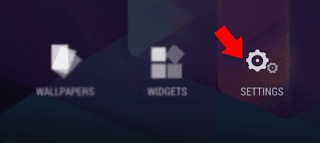
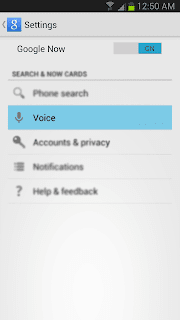
2. In Google Now Settings tap on Voice -> Offline speech recognition....it will open Download Languages screen.
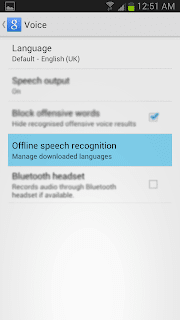
3. In Download Languages activity tap on All tab and select English (US) in the list.
4. Now, You will get a pre installed warning tap OK
5. Go back to INSTALLED tab and tap on English (US)
6. Now, it will ask you to download the latest update tap on Download.
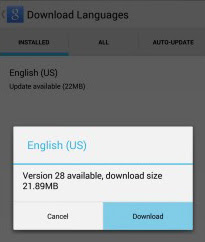
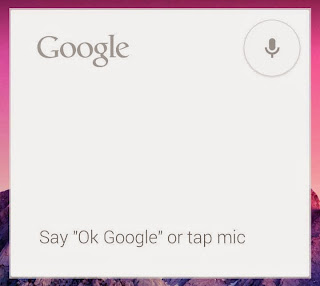
7. After finishing the update....go back to Home screen..where you’ll notice “Ok Google” will now be displayed inside the Google Search widget.
Thats it..
Note :
If "Ok Google" not showing in the Google search widget tap on the voice icon in the widget then close it.... now try saying OK Google it will work....
By following the post you can get both of them in your non nexus device too. The method works with both rooted and non rooted devices. Currently "OK Google" command will work from the Home screen only.I have tested it with Galaxy S3 GT-I9300 and it works very well.
Update:
Tested in more devices .... some of them have force close error... so while selecting launcher dont select always select just once.
How To Setup Android 4.4 KitKat Launcher ?
1. Download and Install Launcher | Latest Google Now2. After Installing both apk ... click Home button and select Launcher in the list.
Note: select Just once dont set always...then you can uninstall simply in case force close appears.
How To Enable Ok Google Command in Google Now ?
To work this method your phones default language should be English US to change default language go to Settings -> Language and input -> language1. In Home Screen go to Google Now settings
2. In Google Now Settings tap on Voice -> Offline speech recognition....it will open Download Languages screen.
3. In Download Languages activity tap on All tab and select English (US) in the list.
4. Now, You will get a pre installed warning tap OK
5. Go back to INSTALLED tab and tap on English (US)
6. Now, it will ask you to download the latest update tap on Download.
7. After finishing the update....go back to Home screen..where you’ll notice “Ok Google” will now be displayed inside the Google Search widget.
Thats it..
Note :
If "Ok Google" not showing in the Google search widget tap on the voice icon in the widget then close it.... now try saying OK Google it will work....
Available link for download
Subscribe to:
Posts (Atom)