Showing posts with label screenshot. Show all posts
Showing posts with label screenshot. Show all posts
Sunday, March 26, 2017
How To Take Screenshot in Samsung Galaxy S Duos 2 S7582
How To Take Screenshot in Samsung Galaxy S Duos 2 S7582

Even Galaxy S Duos 2 S7582 is an upgraded version , It has not much improvement over Galaxy S Duos S7562. Some of the improvements of S Duos 2 S7582 over S Duos S7562 are Android 4.2 Jellybean, Dual-core 1.2 GHz CPU, HD Video Recording (1280 x 720 PX), Faster Download Speed 21 Mbps etc.
In this post I included the steps to take screenshot in Galaxy S Duos 2 S7582 without using any third party software. In this latest model too Samsung provides the same key combo which used in the Android Jellybean of Galaxy S4, S3, S2, etc.
Take Screenshot in Galaxy S Duos 2 S7582
1. Go to the desired screen you want to capture.2. Then, Simultaneously press and hold the Power and Home button for 2-3 seconds.
Thats... You will hear a capture sound...if its success.
To get the captured picture Go to
Gallery -> Screenshots
Or
Go to /storage/sdcard0/Pictures/Screenshots
using any file manager.
Available link for download

Monday, January 16, 2017
How To Turn Of Windows Phone Camera Shutter and Screenshot Sound
How To Turn Of Windows Phone Camera Shutter and Screenshot Sound
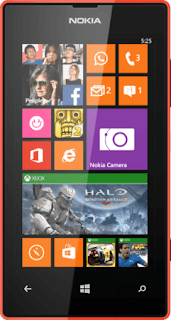 Most of us know how to take a screen shot in windows mobile. It is a very easy and fast procedure when compared to Android. The key combination is common for all windows phones (hold power and tap the windows button or press power and windows button together... On successful you will hear a screenshot sound).
The screenshot sound is same as the camera capture sound, So it may drive you into trouble, especially when you are in public places. The people look up and may think you are taking pictures of them. The sound will produce even the phone is in silent mode.
In this post I included the option to disable windows phone screenshot sound as well as the camera shutter sound. Both of the sounds can disable by unchecking the Camera shutter option in ringtones + sounds. Here are the complete steps..
Windows Phone Disable Camera shutter and Screenshot sound
1. Go to Settings > ringtones + Sounds2. Uncheck Camera shutter.
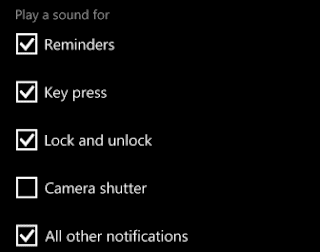
Thats it..
Available link for download
Sunday, December 25, 2016
How To Take Screenshot in Galaxy S3 Galaxy S4 and Galaxy Note 2
How To Take Screenshot in Galaxy S3 Galaxy S4 and Galaxy Note 2
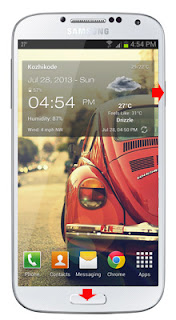
In this post i am included the simple two methods to take screenshot in Samsung Galaxy S2, Galaxy S4 and Galaxy Note 2. The methods includes the common key combination and the Palm swipe method.
How To Take Screenshot in Galaxy S3, Galaxy S4 and Galaxy Note 2 ?
Method 1 ( Key combo method )
1. Go to the desired screen you want to capture.
2. Now , simultaneously press and hold the Power and Home button for 2-3 seconds.
thats it..on success capture you will see Saving screenshot... notification with capture sound.
Method 2 ( Palm Swipe Method )
1. Go to Settings -> Motion ( Enable it if not enabled )
2. In Motion check Palm swipe to capture.
3. Now go to the desired screen you want to capture.
4. Finally Swipe your parm from right to left or left to right.
thats it... on success capture you will see a capturing effect on the screen with capture sound.
To get the captured picture Go to Gallery -> Screenshots Or Go to /storage/sdcard0/Pictures/Screenshots using any file manager.
Available link for download
Friday, December 23, 2016
How To Take Screenshot in Galaxy Grand Duos I9082
How To Take Screenshot in Galaxy Grand Duos I9082
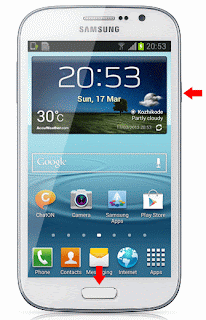
Update:
I was forget to include the Palm swipe method. Thanks Bayu Widyasanyata for mentioning it. Now the post updated with common Key combo and Palm swipe method.
How Take Screen Shot in Galaxy Grand Duos I9082 ?
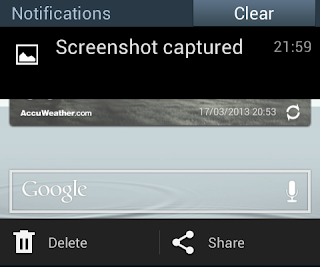
Method 1 ( Key Combo Method )
1. Go to the desired screen you want to capture.
2. Now , simultaneously press and hold the Power and Home button for 2-3 seconds.
Method 2 ( Palm Swipe Method )
1. Go to Settings -> Motion ( Enable it if not enabled )
2. In Motion check Palm swipe to capture.
3. Now go to the desired screen you want to capture.
4. Finally Swipe your parm from right to left or left to right.
Thats it... both of the method above tested and works great.
To get the captured picture Go to Gallery -> Screenshots Or Go to /storage/sdcard0/Pictures/Screenshots using any file manager.
Available link for download
Tuesday, December 6, 2016
How To Take A Screenshot in Samsung Galaxy S2 I9100
How To Take A Screenshot in Samsung Galaxy S2 I9100

Taking screen shot in Samsung Galaxy S2 is very easy. No application needed to capture the screen.
How To:
1. Press and Hold down the HOME button and then press the POWER button immediately before launching the recent apps window.
- You should hear a sound of a screenshot being taken and you should see a text that shows it has been captured and saved.
Done !! Now navigate to /sdcard/ScreenCapture or open galary to get the captured screen.
Tested This method, Works great with ofiicial Rom ( Android 2.3+ ) and not works with Resurrection Remix ics v1.3 Rom.
Available link for download
Monday, November 28, 2016
How To Take Screenshot in Galaxy Core Duos GT I8262
How To Take Screenshot in Galaxy Core Duos GT I8262
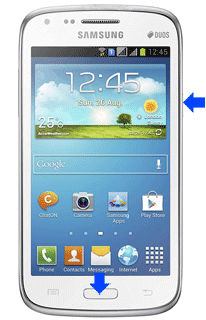
In this post i included the steps to capture screenshot in Galaxy Core GT-I8262 without using any third party app. We can take the screenshot of Galaxy Core duos using the same key combo uses in other Galaxy devices like Galaxy S3,Galaxy S4,Note 2, etc.
Samsung Galaxy Core Duos GT-I8262 Screenshot
1. Go to the screen you want to capture.2. Now , Press and hold the Power and Home button for 2-3 seconds.
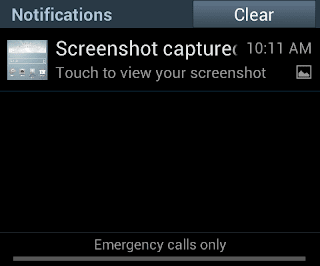
Thats it...On successful capture you will hear a capture sound and will see a white border animation in the screen.
To get the captured picture
Go to Gallery -> Screenshots
Or
Go to /storage/sdcard0/Pictures/Screenshots using any file manager.
Available link for download
Thursday, November 10, 2016
How to take screenshot in Galaxy S plus
How to take screenshot in Galaxy S plus

Method 1:
1. Go to the screen which you desire to take Screenshot.
2. Press and hold the Back soft key.
3. Now press the Home button in the middle.
Method 2:
1. Go to the screen which you desire to take Screenshot.
2. Simultaneously Press the Back soft key and Home button in the middle.
Thats it. You will hear a capture sound and a Toast message will appear as Screen captured. Saved as image file. To get the captured image go to /mnt/sdcard/ScreenCapture.
Available link for download
Wednesday, November 2, 2016
How to take screenshot in Android v4 ics ice cream sandwich
How to take screenshot in Android v4 ics ice cream sandwich

Taking screen shot in Android 4.0+ is simple when compared with other android versions. While capturing the animation makes it more fun. I am not sure whether this method works with all android 4.0+ versions, i am tested the method with Galaxy S2 and Nexus S and works great.
Method:
1. Press the volume down button and power button simultaneously for one second,then you will hear a capture sound with animation.
Thats it ! Browse to /sdcard/Pictures/Screenshots for captured images.
Available link for download
Sunday, October 16, 2016
How To Take Screenshot in Xiaomi Redmi 2 And Other MI Devices
How To Take Screenshot in Xiaomi Redmi 2 And Other MI Devices
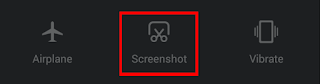
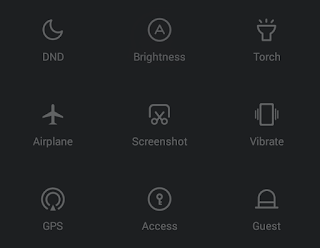 Yesterday, I wrote about rooting Xiaomi Redmi 2 and here I am writing about the built in method to take screenshot in Xiaomi Redmi 2 and other mi devices. In Xiaomi devices, there are two methods available to capture the screen. Notification drawer toggle and Key combination method.
Xiaomi Redmi 2 Screenshot Using Notification drawer button
1. Go to the desired screen you wish to capture.2. Swipe down Notification drawer and scroll down until you reach Screenshot button.
3. Now tap on the Screenshot button.
Xiaomi Redmi 2 Screenshot Using Key Combination Method
1. Go to the desired screen you wish to capture.2. Press and hold Volume down and Power button together for 2-3 seconds.
Thats it.. To get the captured screen shot Go to Gallery -> Screenshots Or Go to DCIM/Screenshots using any file manager.
Available link for download
Subscribe to:
Posts (Atom)