Showing posts with label s3. Show all posts
Showing posts with label s3. Show all posts
Saturday, February 11, 2017
How to Set Password on Samsung Galaxy S3 I9300 I9308
How to Set Password on Samsung Galaxy S3 I9300 I9308
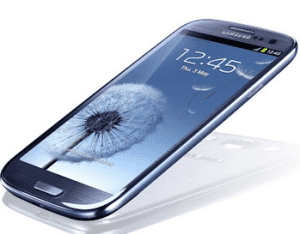
“Hi, guys. I want to set a password to lock the screen of my Samsung galaxy s3 i9300 phone, but I don’t know how to make it. So please kindly tell me the concrete method asap.”
To set password on Samsung Galaxy S3 I9300/I9308, you can follow the steps below.
Step 1: Open Apps and enter Settings.
Step 2: Choose Security to move on.
Step 3: Select Screen lock.
Step 4: Choose Password to go on.
Step 5: Type a password and click Continue.
FYI, the password must contain at least 4 characters, at least 1 letter included.
Related Articles:
Android USB Driver for Samsung
How to Enable and Disable USB Debugging in Samsung GALAXY Tab2
How to Set Password on Samsung GT-I8190N
How to Set Password on Galaxy S4 GT-I9500/GT-I9508
Available link for download

Sunday, December 25, 2016
How To Take Screenshot in Galaxy S3 Galaxy S4 and Galaxy Note 2
How To Take Screenshot in Galaxy S3 Galaxy S4 and Galaxy Note 2
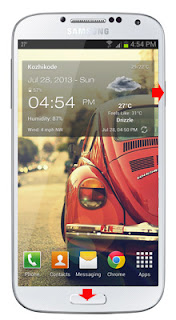
In this post i am included the simple two methods to take screenshot in Samsung Galaxy S2, Galaxy S4 and Galaxy Note 2. The methods includes the common key combination and the Palm swipe method.
How To Take Screenshot in Galaxy S3, Galaxy S4 and Galaxy Note 2 ?
Method 1 ( Key combo method )
1. Go to the desired screen you want to capture.
2. Now , simultaneously press and hold the Power and Home button for 2-3 seconds.
thats it..on success capture you will see Saving screenshot... notification with capture sound.
Method 2 ( Palm Swipe Method )
1. Go to Settings -> Motion ( Enable it if not enabled )
2. In Motion check Palm swipe to capture.
3. Now go to the desired screen you want to capture.
4. Finally Swipe your parm from right to left or left to right.
thats it... on success capture you will see a capturing effect on the screen with capture sound.
To get the captured picture Go to Gallery -> Screenshots Or Go to /storage/sdcard0/Pictures/Screenshots using any file manager.
Available link for download
Subscribe to:
Posts (Atom)