Showing posts with label off. Show all posts
Showing posts with label off. Show all posts
Tuesday, March 28, 2017
How to Turn Off Factory Mode yellow text on Samsung Galaxy Tab
How to Turn Off Factory Mode yellow text on Samsung Galaxy Tab
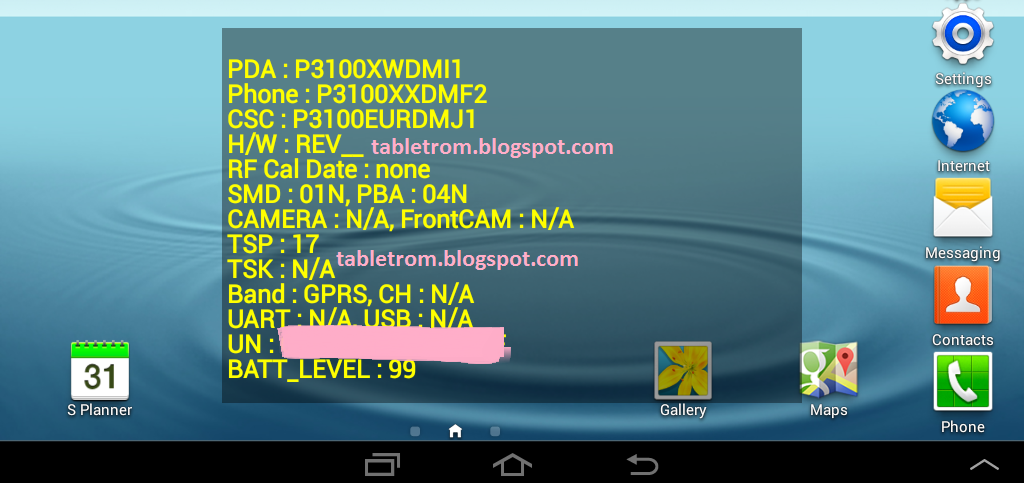
How to Turn Off Factory Mode or Yellow Text on Samsung Smartphones and Samsung Galaxy Tablets.
Samsung manufacturing best tablets and no one have doubt on the quality and software support . samsung galaxy tab are the best tablet to buy . No matter if you talk about samsung galaxy tab specs or samsung galaxy tab price , Samsung Tabs are always on the top list of best tablet to buy.
Disabled Samsung galaxy functions while Factory Mode is turn on Samsung Tablet and Samsung Smartphones :
1. Yellow text on LCD Samsung Galaxy Tab and Smartphones.
2.Directly turn off after pressing power button.
3.Sim data disabled.
4. Unable to open apps while yellow text displaying on tablet.
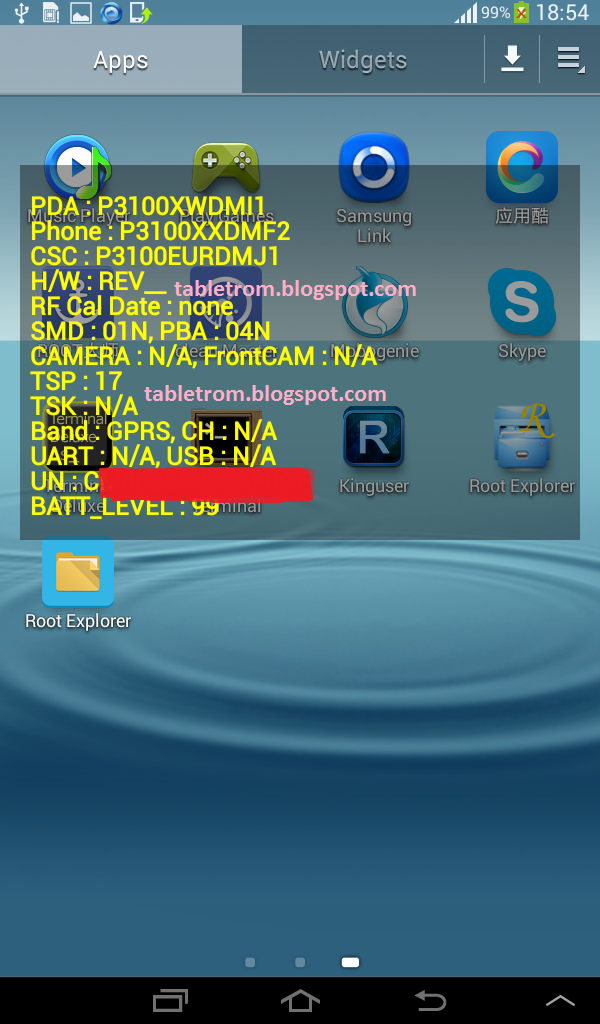
How to Turn off Factory Mode on Samsung Galaxy tab or Samsung Galaxy Smartphones.
There is very easy ways to turn off factory mode or unwanted yellow text on your samsung smartphones or tablet but we will discuss the easy one . You need Superuser (Su) access in both ways. Super User or SU means you have to root your tablet or smartphone first.
How to Root Samsung Smartphones and Samsung Galaxy Tablets.
After successful root SU icon will be displayed on tablet or smartphone. Now you you need to download and install any Terminal Emulator from Google Play Store. Its time play with some commands on Samsung Smart Device.
Open Terminal
Type su (Allow SU to grant access if asked . )
Type rm /efs/factoryApp/keystr (if the message appear "rm failed for /efs/factoryApp/keystr no such directory") ignore it .
Type rm /efs/factoryApp/FactoryMode
Type echo -n ON >> /efs/FactoryApp/Keystr
Type echo -n ON >> /efs/FactoryApp/FactoryMode
Type chown 1000.1000 /efs/FactoryApp/Keystr
Type chown 1000.1000 /efs/FactoryApp/FactoryMode
Type chmod 0744 /efs/FactoryApp/Keystr
Type chmod 0744 /efs/FactoryApp/FactoryMode
reboot
Galaxy tablet or Galaxy Smartphone will be rebooted and you are done. Now the yellow text should not appear because this all happen when efs become corrupted. Now you have successfully repair efs. On / Off mode will be appear again. This method is personally tested on Samsung Galaxy Tab 2 , success rate was 100% . Work like charm.
For reference see image below.
How to Root Samsung Smartphones and Samsung Galaxy Tablets.
After successful root SU icon will be displayed on tablet or smartphone. Now you you need to download and install any Terminal Emulator from Google Play Store. Its time play with some commands on Samsung Smart Device.
 |
| Terminal Emulator |
Open Terminal
Type su (Allow SU to grant access if asked . )
Type rm /efs/factoryApp/keystr (if the message appear "rm failed for /efs/factoryApp/keystr no such directory") ignore it .
Type rm /efs/factoryApp/FactoryMode
Type echo -n ON >> /efs/FactoryApp/Keystr
Type echo -n ON >> /efs/FactoryApp/FactoryMode
Type chown 1000.1000 /efs/FactoryApp/Keystr
Type chown 1000.1000 /efs/FactoryApp/FactoryMode
Type chmod 0744 /efs/FactoryApp/Keystr
Type chmod 0744 /efs/FactoryApp/FactoryMode
reboot
Galaxy tablet or Galaxy Smartphone will be rebooted and you are done. Now the yellow text should not appear because this all happen when efs become corrupted. Now you have successfully repair efs. On / Off mode will be appear again. This method is personally tested on Samsung Galaxy Tab 2 , success rate was 100% . Work like charm.
For reference see image below.
  |
| ON/OFF Menu Appear |
 |
| No Yellow Text found |
Available link for download

Wednesday, January 4, 2017
How To Turn Off Camera Shutter Sound in Galaxy Note 3 Note 2 And Many Other Android Devices
How To Turn Off Camera Shutter Sound in Galaxy Note 3 Note 2 And Many Other Android Devices

In this post I included all the available methods to disable camera shutter sound in Galaxy Note 3 and Note 2. If you have a different android phone try any of the method available in this post. Any of the method may work.
Method 1:
For those users of Galaxy Note 2 and Note 3 which have enabled the option to turn off the camera shutter sound by default.
1. Open your Camera Application.
2. In the camera app, click the Settings softkey.
3. On the next dialog...select settings tab ( third tab )
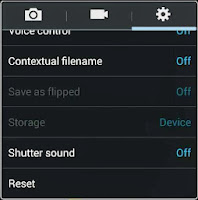
4. Finally Scroll down and tap on Shutter sound to off it.
Method 2 ( Require Root )
This method enables the hidden Shutter sound menu in Galaxy Note 3 and Note 2. You need to root the phone to get it work.
1. Download and install Note 2 Hidden Settings app from Play Store
2. Open the installed app and scroll down to get CAMERA SETTINGS
3. Under camera settings Toggle ON Add shutter sound menu and tap on Apply button.

4. Exit the app...and follow the Method 1.
Method 3
This method uses the app Enforced Stream Silencer to mute the camera shutter sound. This method works with many android devices other than Note 3 and Note 2..try your luck.
1. Download and install Enforced Stream Silencer from here
2. Open the app and check Disable STREAM_SYSTEM_ENFORCED.
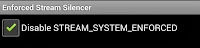
3. Finally exit the app...done..
Available link for download
Tuesday, December 20, 2016
IEM Season 10 Kicks Off in Shenzhen
IEM Season 10 Kicks Off in Shenzhen
The tenth season of the Intel Extreme Masters kicked off Sunday in Shenzhen, with the worlds best cyber athletes and thousands of spectators gathering in the southern China city to watch the action unfold.
You can watch a livestream of the action here on the official site, as matches are scheduled throughout the day Asia time. Replays will be available online later.

Sundays matchup was all about the Star Craft II® quarter-finals and finals, while todays action will focus on Heroes of the Storm™. The action has already started, with legendary gamers Virtus.pro squaring off against Newbee and Brave Heart taking on MVP Black. The grand finale of the Shenzhen stop of IEM is scheduled for 3:00pm China time.
After Shenzhen the action continues at Gamescom in Cologne, Germany with the best German and European games facing off for some serious cash prizes.
GIGABYTE is a proud motherboard and graphics card sponsor of IEM, as cyber athletes need the best if they are to perform at their peak. If you find yourself in the Cologne area during Gamescom be sure to stop by. GIGABYTE will be showing off its latest motherboards and graphics cards during the expo, with a big announcement scheduled for the show.
Available link for download
Sunday, November 13, 2016
How to Turn Off Safe Mode on Android
How to Turn Off Safe Mode on Android
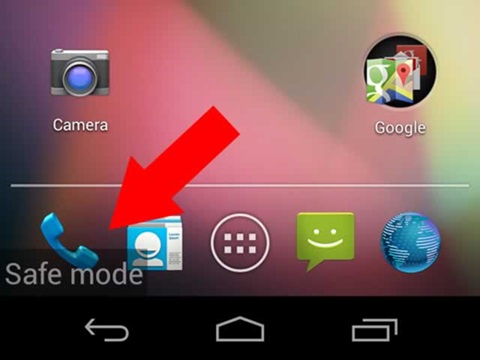
How to Turn Off Safe Mode on Android
Android is a customization-friendly and highly versatile mobile operating system, but it is always doomed by the fragmentation problem. Android fragmentation is a universal problem that is due to the diversity in various Android devices and OS versions, which makes it a nightmare to app developers. An Android app developer has to write extra bits of code to make the app compatible with wide range of chipsets and OS versions. This isn’t an issue with the iOS as the hardware and software are controlled by Apple.
Due to this fragmentation problem, some apps might act weird in few devices or OS versions. However, the worst thing is that you can’t distinguish whether the issue is from an app or system-related. Luckily, Android environment comes with a Safe Mode that helps you troubleshoot the perky problems on your device. It’s quite simple to enter the Safe mode on Android, but sometimes it’s a bit annoying to get out of it. Most people get into safe mode without their knowledge and stuck in there wondering how to get out of it.
In this tutorial, we will show you how to enter and exit Safe Mode on Android in few simple steps.
Enter Safe Mode on Android
Method 1:
- Long press the power button on your Android device to bring up the power menu.
- Now, long press the Power Off option until you see a pop-up “Reboot to Safe Mode”. Click on OK to reboot into Safe Mode.

Method 2:
If you’re running on an older version of Android device, the first method might not work for you. Instead, try the below method for good chances to get into safe mode.
- Power off your device.
- Power it on again and when you see the boot logo, press and hold the volume up button until you see the Safe Mode watermark on the lower left-hand side of the display.
- If you couldn’t boot into safe mode still, try by pressing either Volume Down or Menu button. The key combination depends on the device make and model, so you should go with trail and error method.

Turn Off Safe Mode on Android
Sometimes, a simple reboot from Safe Mode is sufficient to get out of it. But if you are stuck in safe mode and the reboot didn’t work out for you, follow the below steps to turn off safe mode on Android.
Method 1:
- Power off your device.
- Power it on again and when you see the boot logo, press and hold theVolume Down and Power buttons at the same time.
- If this doesn’t workout, try using the Volume Up button along with Power button to get out of the Safe mode.
Method 2:
- Power off your device.
- Remove the battery from the device and wait for a couple of minutes before you re-insert the battery.
- It usually takes a couple of minutes for any residual charges to settle down. So, be patient for a few minutes before you insert the battery.
- Now, try powering ON the device.
Ideally, you should be out of Safe Mode by now. But if you’re still stuck in Safe Mode, opt for a full factory reset as a last resort.
Available link for download
Subscribe to:
Posts (Atom)