Sunday, January 29, 2017
How to View Deleted Text Messages on Lenovo A series Android
How to View Deleted Text Messages on Lenovo A series Android
Since the amount of spam messages and group messages in the phone has increased at an incredible speed, deleting them has become a must-to-do thing in daily life. The question is no one can be one hundred percent sure that not a single informative or valuable text message was removed unless the deleted are viewed again. Hence, a way to check the deleted phone text messages must be found. And this article will specially introduce how to view deleted text messages on Lenovo A-series Android phones as detailed as possible.
First, enable USB debugging in the Android phone, and then link it to a computer by use of the phone USB data line.
Generally speaking, the USB debugging in Lenovo A-series Android phones can be turned on according to the following 2 methods.
1. Settings?Applications?Development?USB debugging
2. Settings?Developer options?USB debugging
Tips: As far as the second method is concerned, if it is your first time to turn on USB debugging in the phone, you may find that the Developer options disappears in Settings. In fact, it is hidden, so you can find it by the way below.
Settings?More?About Phone?tap Build number for many times to enter developer mode?go back to More in Settings
Second, install phone driver and root the phone.
If the phone data cannot be detected and displayed on the computer, it means that you need to install a driver first. Further speaking, go to http://support.lenovo.com/en_US/downloads/default.page, find a matching driver, download and accomplish its setup. After that, get root access through rooting the phone by a root tool so that you can apply Android phone data recovery software to restore and view the deleted short messages.
Third, download an Android phone text messages recovery app and install it.
For your reference, you can download iSunshare Android Data Genius (free version) and finish it installation.
Fourth, use the app to recover the deleted text messages on the computer.
If the previously steps have been completed perfectly, the program will automatically and promptly scan and load the contacts and messages from the phone.

When these data are loaded and selected by default, you can deselect the android phone option, choose Message, click the small box on the middle top left, only select the deleted which are presented in red color and hit the Recover button to save them in a place of the computer.

Then you can go to the chosen place in your PC to view the deleted text messages by yourself.
Related article:
Lenovo Android USB Drivers
Available link for download

Monday, December 12, 2016
Install ROM MIUI 5 Smoot and Fast Plus Dolby Universal For Lenovo A316i Tested By Localtechno and Work 100
Install ROM MIUI 5 Smoot and Fast Plus Dolby Universal For Lenovo A316i Tested By Localtechno and Work 100
Salam Localtechno kali ini localtechno akan berbagi dengan sobat semua tentang Cara merubah lenovo A316i menjadi MIUI V5 official Smoot and Fast dijamin work 100%
Kami yakin bahwa sobat adalah seorang yang suka gonta-ganti ROM dan pengen mencari ROM atau OS yang cocok dan pas. Maaf sobat kalau ROM atau OS yang perfect atau sempurna itu nggak ada, pasti ada aja yang kurang.... he he he :D
OK langsung aja kita menuju ke TKP :
- 1. HH sobat musti harus di ROOT terlebih dahulu bica baca di SINI
- 2. HH sobat musti install CWM terlebih dahulu bica baca di SINI
- 3. Baru sobat download ROM MIUI nya di SINI dan letakkan di luar folder jangan dimasukkan dalam folder
- 4. Masuk ke Recovery Mode dengan cara tekan dan tahan lama secara bersamaan tombol sakti : Volume up + Power hingga masuk ke menu pilihan Boot kemudian pilih recovery mode
- 5. Setelah itu lakukan wipe data, wipe chace dan wipe dalvik kemudian pada menu advance pilih wipe dalvik.
- 6. Setelah itu pilih install zip from sdcard dan pilih ROM MIUI_Smoot&Fast.zip yang sudah sobat download dan masukkan pada SDCAR tadi kemudian pilih yes.
- 7. Tunggu hingga prosesnya selesai dan selamat menikmati Lenovo rasa MIUI :)
- 8. Untuk menambah performa suara agar lebih greget bisa ditambah dengan DOLBY UNIVERSAL silahkan download di SINI
Sobat bisa lihat hasil screenshot by localtechno dibawah ini :


Available link for download
Friday, December 2, 2016
How to Unbrick Lenovo IDEATAB A1000 Android Tablets
How to Unbrick Lenovo IDEATAB A1000 Android Tablets
LENOVO IDEATAB
A Series
A1000
Android Tablets
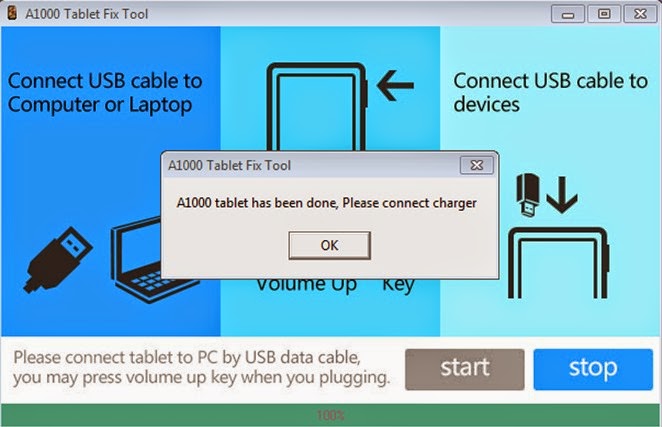
How to Unbrick Lenovo Tablet Cause by Charging Issue and Power On problem.
 |
| Lenovo IdeaTab A1000 |
How to Solve Charging Failure and Power on Issue :

Available link for download
Monday, October 17, 2016
Install OS Samsung Galaxy S5 di Lenovo A316i 100 Work
Install OS Samsung Galaxy S5 di Lenovo A316i 100 Work
Salam Localtechno, kali ini localtechno mau share sedikit tentang cara install atau merubah operating sistem android original lenovo A316i menjadi Operating Sistem Samsung Galaxy S5.
Beberapa pertanyaan yang mungkin muncul di benak sobat adalah :
1. Nggak bikin bootloop ta.. ?
2. Nggak lemot nantinya...?
3. Nggak percaya... ? dll
Nah kalau sobat localtechno memperhatikan baik-baik cara yang sudah di tulis di sini maka secara logika sobat pasti berhasil, namun jika satu saja yang melenceng dari tutorial ini, maka atas nama localtechno tidak bertanggung jawab apabila terjadi MATOT, BOOTLOOP dll pada HH sobat.
Namun jangan khawatir karena tips dan trick ini sudah saya coba sendiri di HH saya yaitu lenovo A316i dan berhasil 100%.
Ok langsung saja, sudah nggak sabar rupanya ni...hi hi hi,
Caranya adalah :
A. Pertama, HH sobat harus sudah di ROOT bisa root pakek 360 root, download aja di playstore, atau bisa baca di SINI
B. Harus sudah terinstall CWM Recovery kalau belum bisa baca di SINI
C. Download dulu ROM Samsung Galaxy S5 nya di SINI
Jika ke tiga syarat tersebut sudah terpenuhi semua maka, ikuti tutorial install ROM atau OS Galaxy nya di bawah ini :
1. Letakkan file Samsung Galaxy S5.zip yang sudah di download tadi di sdcard, jangan taruh di dalam folder.
2. Matikan HH dan diamkan kira-kira 5 menit atau 1 Menit
3. Nyalakan HH sobat dan masuk ke CWM dengan melakukan tiga tombol sakti yaitu : tekan dan tahan tombol power dan tombol vol up secara bersamaan hingga muncul menu untuk menuju CWM recovery.
4. Setelah masuk ke CWM jangan lupa triple wipe :
a. wipe data/factory reset
b. wipe cache partition
c. wipe dalvik cache
5. Pilih install from sdcard dan pilih file ROMSM-G900I(smoot&fast).zip kemudian pilih install dan tunggu hingga proses selesai.
Nah setelah proses selesai reeboot sistem dan tunggu lebih kurang 5 menit, dan selamat menikmati Lenovo A316i Rasa Samsung Galaxy S5 ^_^
Berikut Penampakannya :


Available link for download